9 Best Premiere Pro Plugins to Speed Up Your Editing Workflow (2026)
Editing fast in Premiere Pro has less to do with your hardware than with how many repetitive micro-tasks you’ve eliminated from your day. Dragging transitions one at a time, exporting through Media Encoder’s queue, hunting for the right clip across 300 project items, manually cutting silence out of a talking-head interview: each of these adds minutes that compound into hours across a week of work. The right plugins remove those tasks entirely or collapse them into a single keystroke.
This list focuses specifically on plugins that cut time from your actual editing pipeline, not visual effects or color grading tools. Every pick here addresses a specific friction point: asset management, silence removal, export speed, caption generation, clip selection, or audio sync. If you want a broader look at productivity-focused tools for Premiere Pro, the options have expanded significantly in 2026.
Here are the 9 best Premiere Pro plugins to speed up your editing workflow:
Quick Picks
| Plugin | Best For | Pricing |
|---|---|---|
| Spotlight FX | Ready-made assets plus workflow tools in one hub | Freemium |
| Silence Remover | Auto-cutting dead air from interviews and podcasts | Freemium (one-time $49.99) |
| One Click Export | Exporting sequences without touching Media Encoder | Paid ($24.99) |
| Automation Blocks Bundle | Custom visual automation scripts for repetitive tasks | Paid ($99.99) |
| Captioneer | Auto-generating animated MOGRT captions from audio | Freemium (subscription from $9/mo) |
| Selector for Premiere Pro | Batch-selecting clips by 45+ stackable filters | Paid ($29.99) |
| BeatEdit Bundle 2 | Syncing cuts and markers to music beats automatically | Paid ($199.97) |
| QuickImporter | Finding and importing files without leaving Premiere | Paid ($39.99) |
| Transcriptive Rough Cutter | Text-based rough cutting from AI transcription | Paid ($199) |
1. Spotlight FX
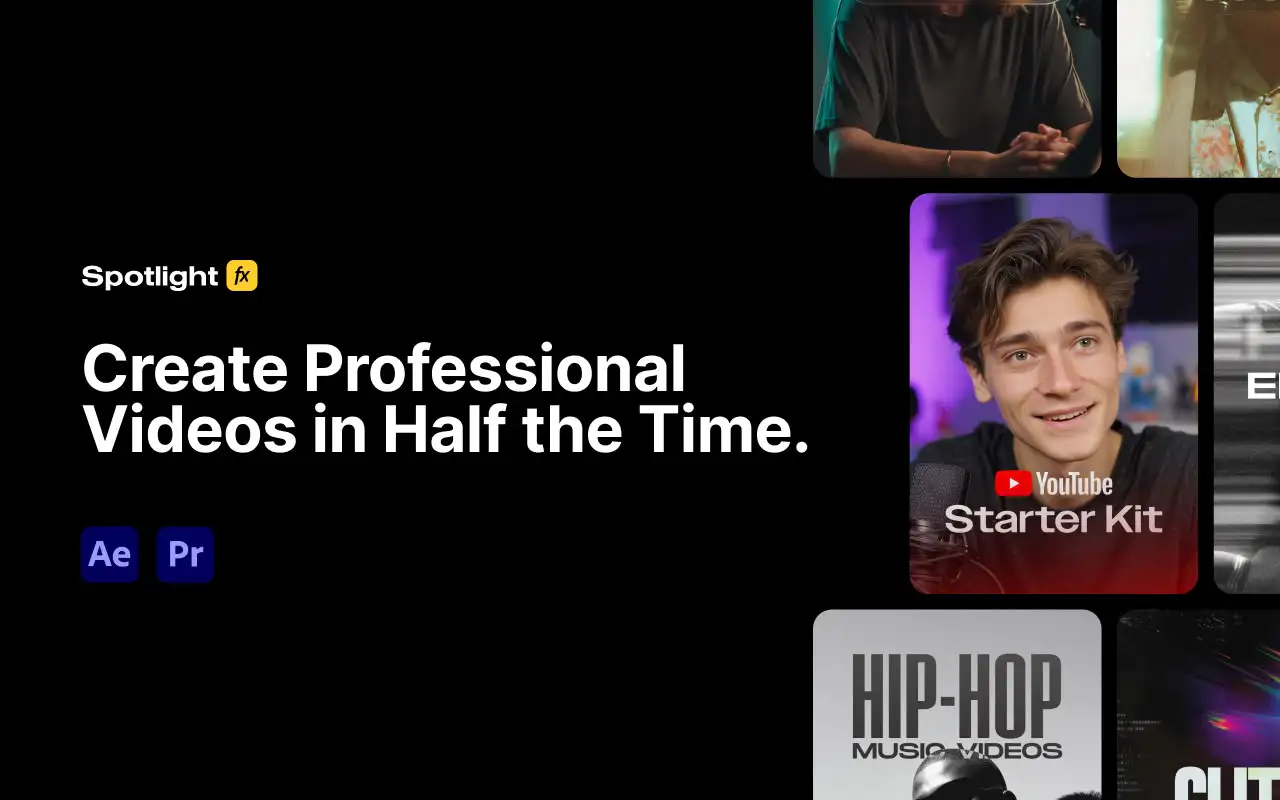
Most asset library plugins solve one problem: they give you more stuff to drag onto the timeline. Spotlight FX solves a different problem: it gets you from blank sequence to finished-looking cut faster, because the assets, workflow tools, and organizational utilities all live in one panel you never have to leave.
The library covers 2,300+ assets across transitions, lower thirds, overlays, text templates, and genre packs (YouTube, wedding, horror, true crime, music video). But what makes it relevant to a workflow speed list specifically are the built-in productivity tools included on the free tier: anchor point movers, section duplicators, batch renamers, and timeline utilities that would otherwise require separate purchases. You can apply a camera-shake transition, rename a batch of clips, and adjust anchor points without opening a second panel.
For editors who regularly deliver for social media or YouTube, the cloud-synced library means assets are always current without manual updates. The free tier gives you 39 templates and the complete workflow toolbox with no time limit, which is a reasonable way to evaluate whether the asset library justifies the upgrade before spending anything.
The honest limitation: if you already have a deep personal library of transitions and MOGRTs you’ve built over years, the asset side of Spotlight FX may feel redundant. The workflow tools alone are harder to replicate cheaply elsewhere. See the full breakdown at the Spotlight FX plugin page.
Key features:
- 2,300+ drag-and-drop transitions, lower thirds, overlays, and text templates
- Built-in workflow tools: anchor point movers, batch renamers, section duplicators
- Cloud-synced library with auto-updating content
- Genre packs for YouTube, wedding, music video, true crime, and horror
- Full workflow toolbox available on the free tier
Pros/Cons:
- Pros: Free tier is genuinely functional, not just a demo; workflow tools and asset library in one panel saves context-switching; no After Effects required
- Cons: Monthly subscription adds up if you only need a handful of templates; asset library overlaps with what experienced editors already own
Best for: Editors who produce high-volume social or client content and need a consistent asset library without building one from scratch
Pricing: Free tier includes 39 templates and all workflow tools. Monthly $29/mo, Yearly $14/mo billed annually, Lifetime $299 one-time
2. Silence Remover
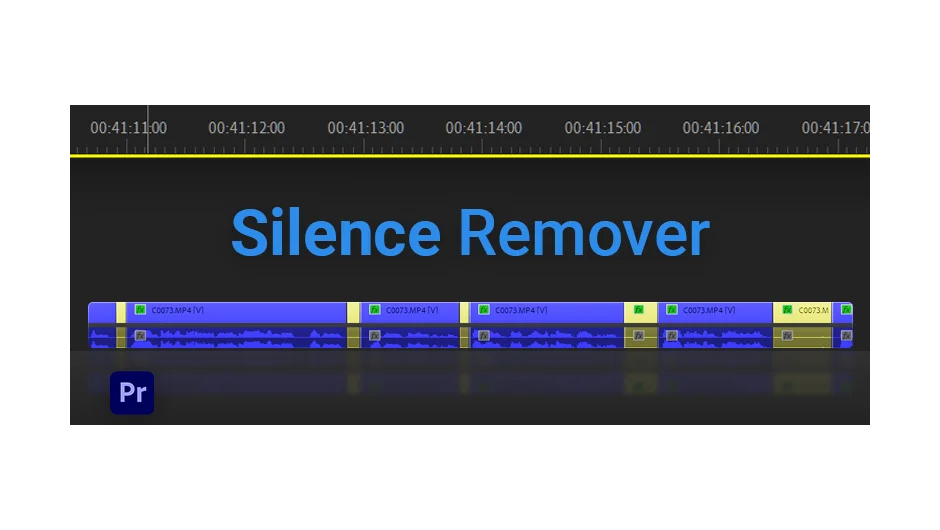
If you edit interviews, podcasts, corporate training videos, or YouTube talking-head content, silence removal is probably the single most time-consuming manual task in your week. Silence Remover detects and cuts dead air automatically inside Premiere Pro, generating a sequence of only the spoken content without you scrubbing through and making individual cuts.
The workflow is straightforward: select your clips, set a threshold for what counts as silence, and let the plugin do the pass. It handles variable-length gaps and adjusts to uneven audio levels, which matters for footage recorded in different environments across a shoot day. The result is a rough-cut-ready sequence that still needs polish, but eliminates the mechanical first pass that can eat 30-60 minutes on a long interview.
It works best on single-speaker or cleanly separated multi-speaker audio. Background music or overlapping dialogue can confuse the detection threshold, so you’ll want to run it on isolated tracks. The $49.99 one-time purchase pays for itself quickly if silence removal is a regular part of your process. If you need the full AI transcription and word-level editing layer on top of this, Transcriptive Rough Cutter goes further but costs significantly more.
Key features:
- Automatic detection and removal of silent gaps in Premiere Pro sequences
- Adjustable silence threshold to match different recording conditions
- Generates a rough-cut sequence without manual scrubbing
- Works on single-speaker interviews, podcasts, and corporate video
Pros/Cons:
- Pros: Eliminates the most tedious part of interview editing; $49.99 is a low one-time cost for the time saved; works natively inside Premiere without round-tripping
- Cons: Less accurate on noisy backgrounds or overlapping audio; still requires a human pass to catch edge cases and pacing issues
Best for: Solo editors who cut a lot of talking-head content and want to automate the first-pass silence removal
Pricing: Freemium, one-time purchase at $49.99 for a single-user license
3. One Click Export
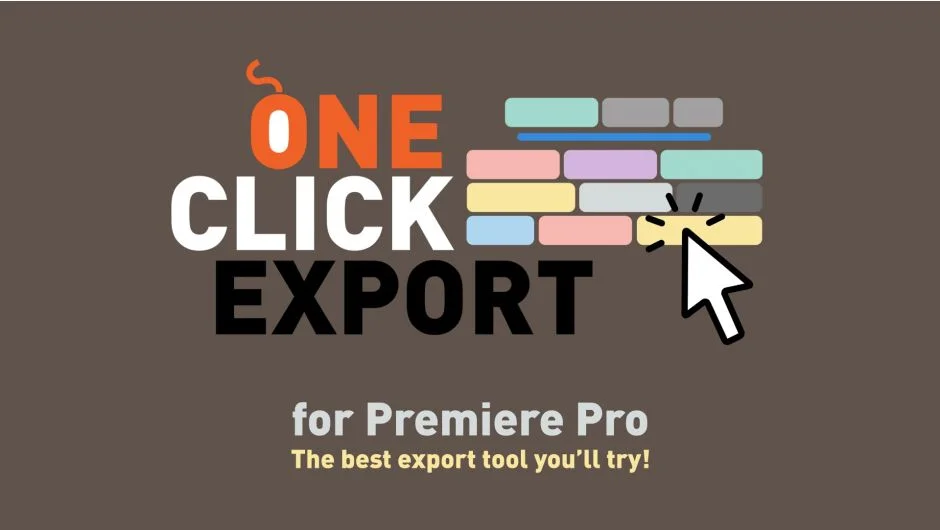
The export step in Premiere Pro is a friction point that most editors accept as unavoidable. You finish the cut, open Export settings (or worse, queue through Media Encoder), select the preset, name the file, choose the destination, and click. One Click Export collapses that into a single button press from a panel with 28 preset buttons you configure yourself.
The practical application: set up presets for your most common deliverables, H.264 for client review, ProRes for archive, vertical 1080x1920 for social, and export any of them by clicking one button. No settings dialogs. No queue management. For editors delivering multiple formats per project, the time savings compound across every sequence in every project.
At $24.99 it has one of the best price-to-time ratios on this list. The limitation is that it requires your presets to be set up thoughtfully upfront. If your deliverable specs change frequently per client, you’ll be adjusting presets more often than you’d like. It also doesn’t replace AfterCodecs if you need specific codec support beyond Premiere’s native export options.
Key features:
- 28 customizable one-click export preset buttons in a docked panel
- Exports sequences without opening Media Encoder or the full Export dialog
- Supports all native Premiere Pro export formats and presets
- Works directly from the timeline panel
Pros/Cons:
- Pros: Genuinely eliminates clicks from the most repetitive final step; $24.99 one-time cost is trivial; clean, minimal panel design
- Cons: Preset management takes time to configure correctly upfront; doesn’t add codec support beyond what Premiere already offers natively
Best for: Editors who deliver the same format specs repeatedly and want to remove the export dialog entirely from their process
Pricing: Paid, one-time purchase at $24.99
4. Automation Blocks Bundle
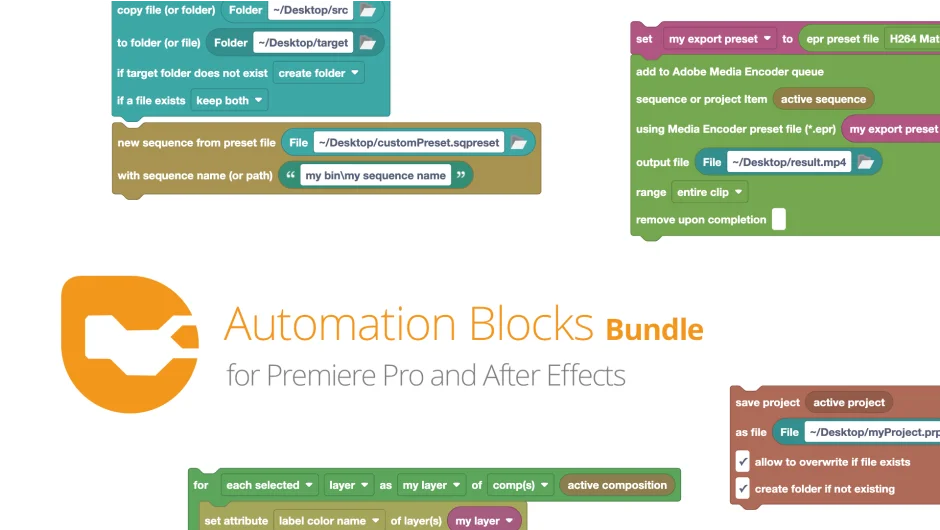
Most Premiere Pro automation tools give you a fixed set of actions with preset triggers. Automation Blocks takes a different approach: it lets you build your own automation scripts using a visual block-based interface, similar in concept to visual programming environments, but without requiring you to write code.
The practical use cases are specific to each editor’s pain points. You might build a block that renames all offline clips with a specific prefix, or one that moves all audio tracks below a certain duration to a separate bin, or one that applies a specific LUT to every clip on a target track. If you find yourself doing the same multi-step task more than a few times a week, Automation Blocks can likely turn it into a one-click operation.
The learning curve is real. Block-based programming is approachable, but building useful automations takes experimentation and some understanding of Premiere’s project structure. The bundle includes both the Premiere Pro and After Effects versions at $99.99, which is fair for the depth you get. This is a tool for editors who are willing to invest an afternoon setting up their environment in exchange for months of time savings afterward.
Key features:
- Visual block-based automation builder, no coding required
- Batch processing for clips, bins, sequences, and project items
- Pre-built block templates for common tasks to start from
- Covers both Premiere Pro and After Effects in the bundle
- Proxy and media management automation support
Pros/Cons:
- Pros: Handles tasks no other plugin on this list can touch; highly customizable to your specific workflow; one-time purchase covers both major Adobe apps
- Cons: Significant upfront time investment to build useful automations; not plug-and-play for editors who want immediate results
Best for: Technically minded editors who handle large projects with repetitive multi-step tasks they want to eliminate permanently
Pricing: Paid, bundle (both Premiere Pro and After Effects) is $99.99 one-time purchase
5. Captioneer
Manually creating captions is one of those tasks where the time cost is clear but often ignored until a deadline forces the issue. Captioneer auto-generates animated MOGRT captions from your audio track inside Premiere Pro, outputting styled captions that go directly onto the timeline rather than into a separate caption track.
The animated output matters for social media delivery, where word-by-word caption animation has become a standard format expectation for Reels, TikTok, and YouTube Shorts. Getting that result manually, exporting a transcript, formatting it, creating MOGRTs, timing them to the audio, takes significant time. Captioneer handles the transcription and the timing in one pass.
Accuracy depends on audio quality. Clean, close-mic recordings produce captions that need minimal correction. Ambient noise or heavy accents will require a manual review pass. The subscription model ($9/month after the 14-day free trial) is the main consideration: it’s recurring cost for a task many editors do on every project. For high-volume creators, it pays for itself quickly. For occasional use, it might not. If your workflow also involves SubMachine for word-by-word animated captions, Captioneer handles the transcript-to-MOGRT pipeline that feeds into it.
Key features:
- AI transcription of audio directly inside Premiere Pro
- Auto-generates animated MOGRT captions timed to audio
- Outputs captions to the timeline, not just a caption track
- 14-day free trial with full feature access
Pros/Cons:
- Pros: Eliminates hours of manual caption timing per project; MOGRT output works for social media formats without additional styling work
- Cons: Subscription pricing adds ongoing cost; accuracy drops on noisy recordings; requires review pass before client delivery
Best for: Content creators and social media video editors who caption every video and want to automate the transcription-to-timeline step
Pricing: Freemium, 14-day free trial. Subscription pricing after trial (approximately $9/month)
6. Selector for Premiere Pro
Selecting the right clips in a large Premiere Pro project is tedious work that most editors solve with manual scrolling and CMD+click combinations. Selector for Premiere Pro takes a different approach: you define selection criteria using up to 45 stackable filters, including clip type, track assignment, label color, frame rate, codec, duration, and more, and it selects matching clips across your entire project or timeline instantly.
The concrete use case: you’ve finished a multi-cam edit and need to apply a LUT or effect to every clip from camera A specifically. Instead of manually identifying and selecting those clips across a long timeline, you filter by the source clip name pattern and select all matches in seconds. Or you need to find every clip under three seconds and delete them as part of a rough-cut cleanup. The filter stacking makes complex selections that would otherwise require scripting accessible to any editor.
At $29.99 one-time, it’s priced as a utility rather than a featured tool, which is accurate. It does one thing and does it well. The limitation is that it’s most valuable on large, complex projects. For a simple 3-minute edit with 20 clips, you’ll never reach for it.
Key features:
- 45+ stackable filters for clip and project item selection
- Select across the full timeline or project panel in one operation
- Filter by codec, frame rate, label, track, duration, clip name, and more
- Batch-select results for applying effects, color, or other operations
Pros/Cons:
- Pros: Solves a genuine pain point on complex projects; $29.99 one-time is fair; filter stacking makes specific selections that would otherwise require scripting
- Cons: Limited value on small, simple projects; selection only, you still need to take action on the selected clips manually
Best for: Editors working on multi-cam, documentary, or long-form projects with large clip counts who need precise batch selection
Pricing: Paid, one-time purchase at $29.99 for a single user license
7. BeatEdit Bundle 2

For any project where the edit needs to hit on the music, whether that’s a brand video, a highlight reel, a music video, or a social post, the manual process of scrubbing through a track and placing markers at every beat is slow and imprecise. BeatEdit Bundle 2 detects beats automatically and places markers at every hit across the entire track in seconds.
From there, you can use those markers as snap points for your cuts, trigger automatic clip splitting at beat positions, or feed them into Premiere’s snap system to align edits manually with visual reference. The difference between placing 200 beat markers by hand and having them appear automatically is measured in hours on longer projects.
The bundle includes both the Premiere Pro and After Effects versions. The $199.97 bundle price is the highest on this list and reflects that: it bundles multiple tools and covers both apps. If you only need Premiere Pro support and don’t edit to music frequently, the individual Premiere version is available separately at a lower price. The beat detection accuracy is high on clear four-on-the-floor rhythms and slightly less reliable on complex polyrhythmic tracks, which is worth knowing before you rely on it for a deadline project.
Key features:
- Automatic beat detection across full audio tracks in Premiere Pro
- Places timeline markers at every detected beat position
- Supports automatic clip splitting at beat markers
- Includes both Premiere Pro and After Effects versions in the bundle
- Compatible with audio-synced cuts, highlight edits, and music video workflows
Pros/Cons:
- Pros: Eliminates the most tedious part of music-sync editing; marker placement is precise on clear rhythms; bundle covers both major Adobe apps
- Cons: $199.97 bundle price is a significant investment; beat detection is less reliable on complex or live-recorded music; only relevant if you edit to music regularly
Best for: Video editors who regularly cut to music and need accurate beat markers without manual placement
Pricing: Paid, bundle is a one-time purchase at $199.97 (saving $150 off individual prices)
8. QuickImporter
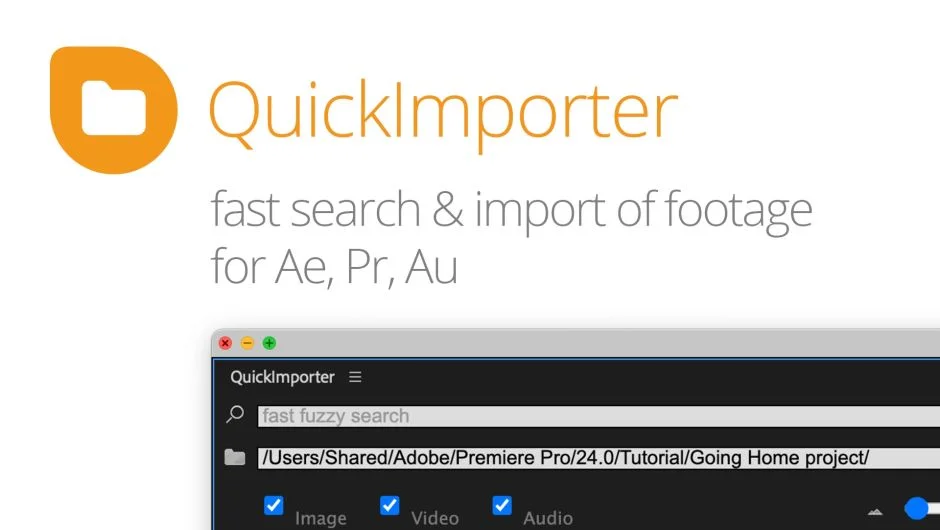
The standard Premiere Pro import dialog requires you to navigate your file system visually every time you need to bring something in. On projects with assets spread across multiple drives and folders, this becomes genuinely frustrating. QuickImporter replaces that process with a fuzzy-search dialog: start typing any part of a filename and matching files appear instantly, regardless of where on your system they’re stored.
The built-in audio preview is what separates it from similar utilities. You can listen to any audio file before importing it, which matters when you’re choosing between multiple takes or hunting through a sound effects library for the right clip. Finding and previewing a file takes seconds instead of the usual open-finder-navigate-locate-switch-back-to-Premiere cycle.
At $39.99 one-time, it’s a straightforward productivity investment for editors who import frequently. The limitation is that the search index needs to cover your drives, which requires initial setup time and may need occasional refreshing if your folder structure changes significantly. It also doesn’t replace a dedicated media asset manager for teams working with large shared libraries.
Key features:
- Fuzzy-search import dialog covering your full file system
- Built-in audio preview before importing
- Faster than the native Premiere import dialog for finding specific files
- Compatible with all file types Premiere Pro supports natively
Pros/Cons:
- Pros: Dramatically faster for editors who import from scattered file locations; audio preview saves time when selecting takes; $39.99 one-time cost
- Cons: Requires index setup and occasional maintenance; not a replacement for team-facing media asset management
Best for: Solo editors or small teams working with footage across multiple drives who spend meaningful time locating files during editing sessions
Pricing: Paid, one-time purchase at $39.99
9. Transcriptive Rough Cutter
Text-based editing is the most significant workflow shift in post-production in recent years, and Transcriptive Rough Cutter brings it inside Premiere Pro without requiring a separate application. It transcribes your footage using AI, presents the transcript as editable text, and lets you build a rough cut by highlighting and deleting words rather than scrubbing through video.
For documentary, interview, and corporate content, this changes the rough cut entirely. Finding the best moments in a 45-minute interview takes minutes of reading instead of hours of video scrubbing. You delete the sections you don’t want in the transcript view, and Transcriptive translates those deletions into timeline cuts. The rough cut you’d spend half a day building manually is ready in under an hour.
At $199 it’s the most expensive single tool on this list. The cost is justified for editors who work in interview-heavy formats regularly. For occasional use, it’s harder to justify. Transcription accuracy is high on clean audio and acceptable on most standard interview conditions. The Silence Remover plugin handles dead air removal as a complementary first pass before you reach for Transcriptive’s word-level editing tools.
Key features:
- AI transcription of footage inside Premiere Pro
- Text-based rough cutting by highlighting and deleting transcript sections
- Translates text deletions directly into timeline cuts
- Free trial available before purchase
- Works on single-speaker and multi-speaker interview footage
Pros/Cons:
- Pros: Transforms the rough cut process for interview-heavy content; saves hours per project on long-form material; AI transcription is accurate on clean audio
- Cons: $199 one-time cost is the highest on this list; less valuable for non-interview content types; transcription accuracy drops on noisy or heavily accented audio
Best for: Documentary and long-form editors who build rough cuts from interview footage and want to work from text rather than video scrubbing
Pricing: Paid, one-time purchase at $199
How We Evaluated These Plugins
Every plugin on this list was assessed against a single core question: does it remove a specific, measurable amount of time from a real editing task? We excluded tools that speed up effects rendering or add workflow-adjacent features that don’t directly reduce editing time.
Evaluation criteria, in order of weight:
Direct time savings: Is there a concrete task this plugin eliminates or collapses? We looked for specific operations, silence removal, export steps, caption generation, beat marking, that have a clear before/after time comparison.
Compatibility and stability: Does it work reliably in Premiere Pro 2025 and 2026 builds on both macOS and Windows? Tools with known compatibility issues or abandoned update schedules were excluded.
Price-to-value ratio: A $200 tool needs to save more than $200 worth of time in a reasonable timeframe. Every entry here clears that bar for its target user.
Learning curve: Tools with a steep setup cost were included only where the long-term payoff is proportionate and documented.
Update frequency and developer support: Plugins from active developers with recent update histories were prioritized over older tools with uncertain maintenance status.
What to Look for in Premiere Pro Workflow Plugins
Before buying any productivity plugin, it helps to diagnose where your time actually goes. Most editors overestimate how much time they lose to effects and underestimate how much they lose to repeated mechanical tasks: finding files, making selections, exporting, captioning, cutting silence. The best workflow plugin for you is the one that targets your specific bottleneck.
Compatibility first. Confirm the plugin works with your current version of Premiere Pro and your operating system before purchasing. Many plugins offer free trials; use them on a real project, not a test sequence, to get an honest read on whether they fit your pipeline. Automation Blocks Bundle is a good example of a plugin that requires compatibility verification given its scripting depth.
One-time vs. subscription pricing. For tools you’ll use on every project, a subscription can be cost-effective. For occasional-use utilities, a one-time purchase is almost always the better model. Calculate your monthly usage honestly before committing to recurring costs.
Integration with your existing setup. A plugin that requires a specific panel layout, a separate helper app, or a major change to how you organize your project can cost more time than it saves during the adjustment period. Prioritize tools that drop into your current process without restructuring it.
Support and documentation. Plugins from established developers with active forums, video tutorials, and responsive support are significantly lower risk than tools with minimal documentation. Check the developer’s release notes history to see how frequently they update for new Premiere Pro versions.
Panel footprint. More panels mean more screen real estate dedicated to tools instead of your timeline. Prefer plugins that dock cleanly or operate through modal dialogs you open when needed, rather than persistent panels that compete for space.
For a broader look at plugins in this category, the Premiere Pro workflow and productivity collection covers tools across the full spectrum of editing automation.
Frequently Asked Questions
What Premiere Pro plugins actually save the most editing time?
The tools with the highest time return per dollar are silence removers for interview content, text-based rough cutting tools, and export automation. These target tasks that editors do on every single project. Beat detection and clip selection tools save significant time on specific project types. Asset libraries save time when you produce high-volume content where building assets from scratch on every project is impractical.
Are free Premiere Pro workflow plugins worth using?
Several free and pay-what-you-want plugins on the market are genuinely useful. The Spotlight FX free tier gives you a real workflow toolbox at no cost. For most critical workflow bottlenecks, though, the paid tools are paid for a reason: they have more development behind them and tend to be more reliable across Premiere Pro version updates.
Do Premiere Pro plugins slow down performance?
Most panel-based plugins (extensions that add UI panels) have negligible performance impact because they don’t process video frames. Effect plugins that apply to clips in the timeline do consume GPU or CPU resources and can affect preview performance on complex timelines. If performance is a concern, check whether a plugin has a free trial and test it on a 4K sequence before purchasing.
Which plugins work on both Mac and Windows?
The majority of plugins on this list support both platforms. Specific compatibility is listed on each developer’s product page. Always confirm before purchasing, particularly if you work across both platforms or share projects with editors on different operating systems.
Can Premiere Pro plugins break my project file?
Plugin-related project issues are uncommon but possible. The main risk is with effect plugins: if a plugin is uninstalled after being applied to clips, those effects go offline and the project shows missing effects warnings. Panel extensions that don’t apply effects to clips carry no such risk. Always keep plugin licenses active for projects still in delivery or archive.
Is there a plugin that automates the full editing process?
No plugin fully automates a professional edit. Tools like Transcriptive Rough Cutter and Silence Remover automate the mechanical first pass, but pacing, story structure, and creative decisions still require a human editor. AI-assisted tools accelerate the parts of editing that don’t require judgment; they don’t replace the parts that do.
What’s the best plugin for editors who work on YouTube content specifically?
For YouTube workflows, the combination of Silence Remover for interview cleanup, Captioneer for automated captions, and Spotlight FX for fast asset access covers most of the time-consuming mechanical tasks. All three can be tested at low or no cost before committing. See the Premiere Pro social media content plugins collection for additional options built specifically for creator workflows.
How often do Premiere Pro plugins need updating?
Adobe releases major Premiere Pro updates roughly two to three times per year, and plugins sometimes require updates to maintain compatibility. Check each developer’s update policy before purchasing. Plugins from active developers on aescripts.com typically receive compatibility updates within a few weeks of major Premiere releases. Abandoned plugins can stop working after a Premiere version update with no fix coming.
Conclusion
For most editors, the single highest-leverage starting point is identifying your biggest recurring time sink and targeting it with one tool: Silence Remover if you cut interviews, Transcriptive Rough Cutter if you work in long-form documentary, One Click Export if you deliver multiple formats regularly. If you want to cover several of these bases from a single install, Spotlight FX’s free tier gives you a meaningful workflow toolbox alongside its asset library at zero cost, making it the lowest-risk first install on this list.
For the full picture of what’s available in this category, browse the Premiere Pro workflow and productivity plugins collection, or check the AI-powered Premiere Pro plugins collection if automation through machine learning is where your workflow gaps are deepest.