Premiere Pro’s native glitch tools run out of road fast. The built-in VR Glitch effect gets you started, but once you need something that looks like actual compression corruption, analog tape dropout, or a pixel-sorted art piece, you need dedicated plugins. The good news: there are more purpose-built glitch and distortion plugins for Premiere Pro in 2026 than ever before, covering everything from single-parameter chromatic aberration to full datamosh simulations.
This list focuses on plugins that work natively inside Premiere Pro without bouncing to After Effects. Each one has been evaluated on visual output quality, rendering performance, compatibility with current Premiere Pro versions, and whether the controls actually give you meaningful creative range or just one preset dressed up as a slider. If you want a broader look at the VFX plugin landscape, the TV Distortion Bundle is a good reference point for what a serious multi-effect distortion toolkit looks like.
Here are the 9 best Premiere Pro plugins for glitch and distortion effects:
| Plugin | Best For | Pricing |
|---|---|---|
| TV Distortion Bundle | All-in-one analog and glitch toolkit | Paid, $99 one-time |
| Glitch Bundle | Buying five glitch plugins at a discount | Paid, $159.99 one-time |
| Motion Mosh | Real-time datamosh and echo trails | Paid, $49.99 one-time |
| Signal | Analog TV transmission artifacts | Paid, $39.99 one-time |
| Data Glitch 2 | Realistic digital image corruption | Paid, $49.99 one-time |
| Pixel Sorter 3 | Pixel sorting glitch art | Paid, $49.99 one-time |
| Glitch Control | Modular glitch with RGB split | Paid, $39 one-time |
| Modulation 2 | Analog modulation and tape warble | Paid, $39.99 one-time |
| Spotlight FX | Ready-made glitch overlays and transitions | Freemium, free tier available |
1. TV Distortion Bundle
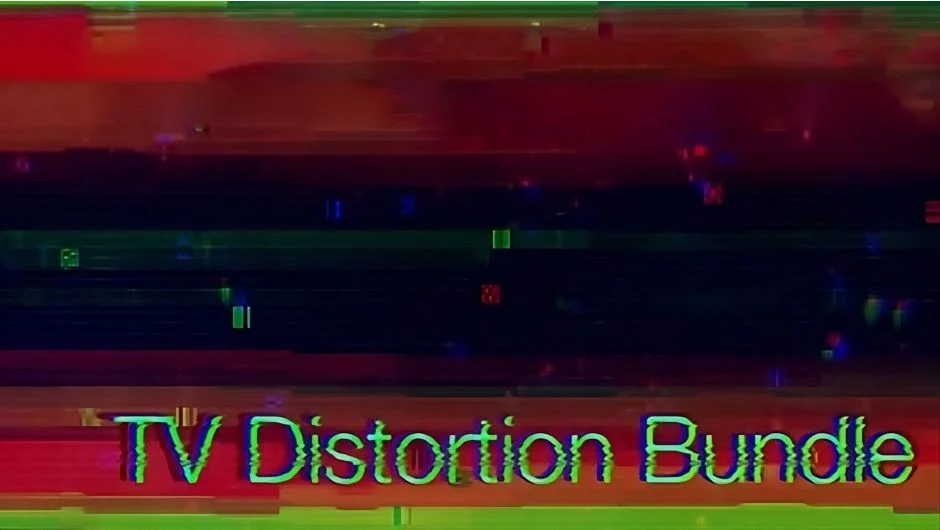
If you only buy one glitch toolkit for Premiere Pro, this is the one to evaluate first. The TV Distortion Bundle packs five separate plugins into a single $99 purchase: Bad TV (analog signal breakdown), Dot Pixels (halftone raster simulation), TVPixel (RGB pixel grid emulation), EFX Chromatic Aberration (RGB channel separation), and a fifth distortion module. Each plugin installs as its own effect in Premiere Pro’s Effects panel, so you can stack them independently or combine them for layered results.
The practical use case that justifies the price: building a horror or lo-fi music video sequence where you need analog dropout, chromatic fringing, and a CRT pixel grid all on the same clip, each on its own keyframe curve. You get that level of control here. Bad TV alone covers more analog artifact territory than most standalone plugins at this price point, with separate controls for signal noise, ghosting, roll, and color bleeding.
One honest limitation: the individual plugins in this bundle are also sold separately, so if you only need chromatic aberration, buying the full bundle is overkill. Check which modules you actually need before committing. GPU acceleration varies per plugin in the bundle, so preview render times on complex 4K setups can add up.
Key features:
- Five separate GPU-accelerated distortion plugins
- Bad TV covers signal roll, ghosting, noise, and color bleed independently
- EFX Chromatic Aberration handles RGB channel offset and fringing
- TVPixel simulates CRT and LCD pixel grid structures
- All effects keyframeable within Premiere Pro’s Effects Controls
Pros/Cons:
- Pros: Strong value at $99 for five distinct effects, modular so effects stack independently, covers both analog and digital glitch territory
- Cons: Some modules also sold separately, which matters if you only need one, preview performance on 4K with multiple effects stacked can slow down
Best for: Editors who need a complete analog and digital distortion toolkit and want to avoid buying five separate plugins.
Pricing: Paid, $99 one-time purchase (saves $110 vs. buying each separately).
2. Glitch Bundle
The Glitch Bundle is the macro-level buy: five glitch effect plugins sold together at $159.99 instead of $212.50 individually. The bundle includes Pixel Galactic, Pixel Sorter 3, Jlitch, Block Swap, and Hacksaw, each targeting a different corner of the glitch spectrum. Pixel Galactic handles trails and echo-style distortion, Pixel Sorter 3 does pixel sorting, Jlitch simulates compression feedback errors, Block Swap shuffles image blocks randomly, and Hacksaw generates displacement patterns.
The reason to buy the bundle rather than individual plugins is coverage. Different projects call for different glitch aesthetics, and having all five means you can reach for the right tool rather than approximating one effect with a plugin designed for something else. A music video opener might use Pixel Sorter 3 for the main title moment, then Hacksaw for transition texture, and Jlitch for a brief compression artifact hit in the edit.
The limitation is the same as most bundles: you are paying for breadth, and if your glitch work is focused in one direction (say, only datamosh-style effects), a targeted single-plugin purchase makes more sense. Also note that some of these plugins use pay-what-you-want pricing individually, so the bundle discount is most meaningful on the paid-tier tools.
Key features:
- Five plugins: Pixel Galactic, Pixel Sorter 3, Jlitch, Block Swap, Hacksaw
- Covers pixel sorting, block shuffling, compression artifacts, displacement, and echo trails
- Each plugin installs independently in Premiere Pro’s Effects panel
- All keyframeable for animated glitch sequences
- 25% saving vs. buying individually
Pros/Cons:
- Pros: Broad coverage across different glitch aesthetics, good discount vs. individual pricing, all work natively in Premiere Pro
- Cons: Some bundle components have pay-what-you-want individual pricing, so the saving is uneven across the five
Best for: Editors and motion designers who want a full glitch toolkit without having to curate individual purchases over time.
Pricing: Paid, $159.99 one-time purchase.
3. Motion Mosh
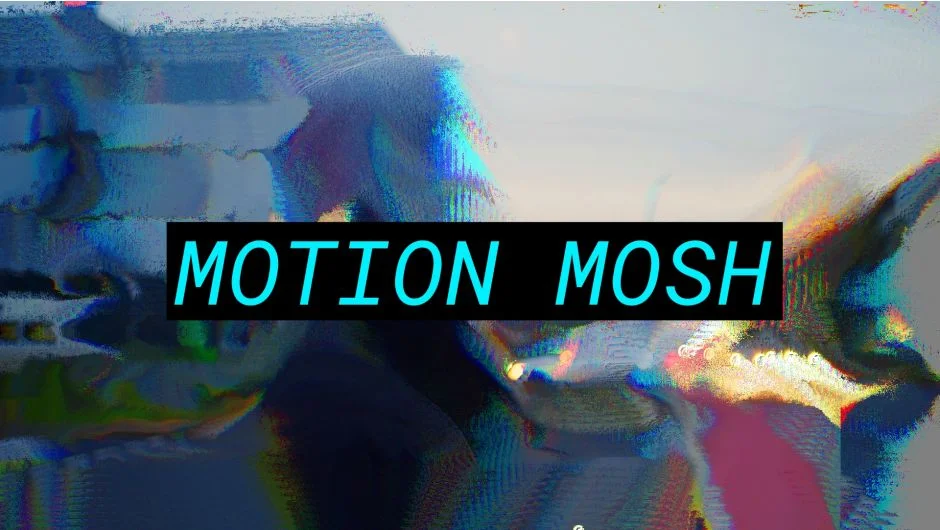
Datamoshing is one of the more specific glitch aesthetics: the smeared, melting pixel movement that comes from stripping I-frames out of compressed video. Getting that look manually in Premiere Pro is a destructive workflow involving hex editors and codec-specific tricks. Motion Mosh replicates it as a GPU-accelerated effect you apply directly to a clip.
The Motion Mosh effect gives you controls for echo strength, motion vector intensity, frame blending, and the characteristic pixel trails that make datamosh recognizable. The real-time GPU rendering is the key selling point here: you can scrub through your timeline and see the effect update without waiting for a render, which matters when you are trying to keyframe the intensity to hit on a specific beat.
The concrete use case: apply Motion Mosh to a transition between two clips in a hip-hop or electronic music video, keyframe the echo intensity to zero at the edit point and spike it for two frames, and you get a smeared datamosh hit that would take considerably longer to achieve manually. Expect a moderate performance cost on 4K footage, roughly a 30-50% slowdown on preview without GPU acceleration active. Requires Premiere Pro 2022 or later.
Key features:
- GPU-accelerated datamosh and echo trail simulation
- Real-time preview without pre-rendering
- Controls for motion vector intensity, echo strength, and frame blending
- Keyframeable for beat-synced glitch animation
- Works as a standard Premiere Pro effect (no external app required)
Pros/Cons:
- Pros: Real-time GPU rendering, convincing datamosh output, straightforward keyframe control
- Cons: Performance cost on 4K without GPU acceleration, effect is somewhat niche so value depends entirely on whether you need this specific look
Best for: Music video editors and social content creators who need datamosh and pixel trail effects without a manual hex-editing workflow.
Pricing: Paid, $49.99 one-time purchase.
4. Signal
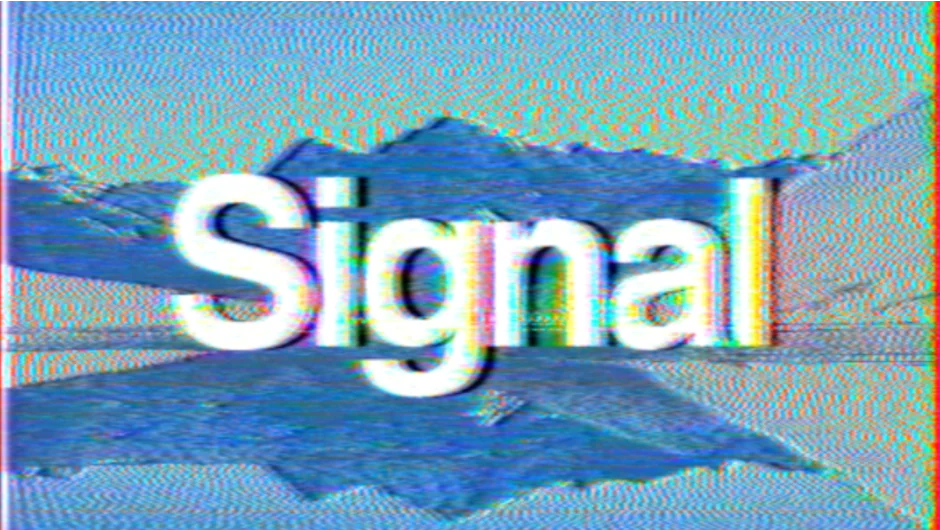
Signal targets a specific aesthetic: the look of footage being broadcast over a degraded analog TV signal. That means horizontal scan line interference, color sub-carrier noise, luminance dropout, and the characteristic ghosting that comes from poor antenna reception or VHS tape damage. If you are working on found footage horror, lo-fi music content, or any project that needs to feel like degraded broadcast television, Signal is the most purpose-built option in this list for that specific look.
What separates Signal from generic glitch plugins is the attention to how analog transmission actually fails. The controls map to real signal degradation phenomena rather than abstract sliders, which means the output looks more physically grounded than effects that simulate glitch generically. You can dial in luminance noise independent of chrominance noise, control the horizontal sync instability separately from the vertical roll, and adjust the color bleed without it affecting the underlying exposure.
The limitation: Signal does one thing, and if your project needs digital compression artifacts or pixel sorting rather than analog transmission simulation, you should look elsewhere. It is not a general-purpose glitch toolkit.
Key features:
- Analog TV signal simulation with scan line interference and luminance dropout
- Independent controls for luminance noise, chrominance noise, and sync instability
- Color bleed and ghosting controls modeled on real broadcast degradation
- Keyframeable for animated signal deterioration
- Compatible with Premiere Pro 2022 and later
Pros/Cons:
- Pros: Physically grounded analog simulation, independent control over separate signal degradation parameters, convincing output on lo-fi and found footage projects
- Cons: Narrow focus (analog TV only), not useful if you need digital or compression-based glitch aesthetics
Best for: Editors working on found footage horror, lo-fi music videos, or any project that requires authentic analog TV signal deterioration.
Pricing: Paid, $39.99 one-time purchase.
5. Data Glitch 2
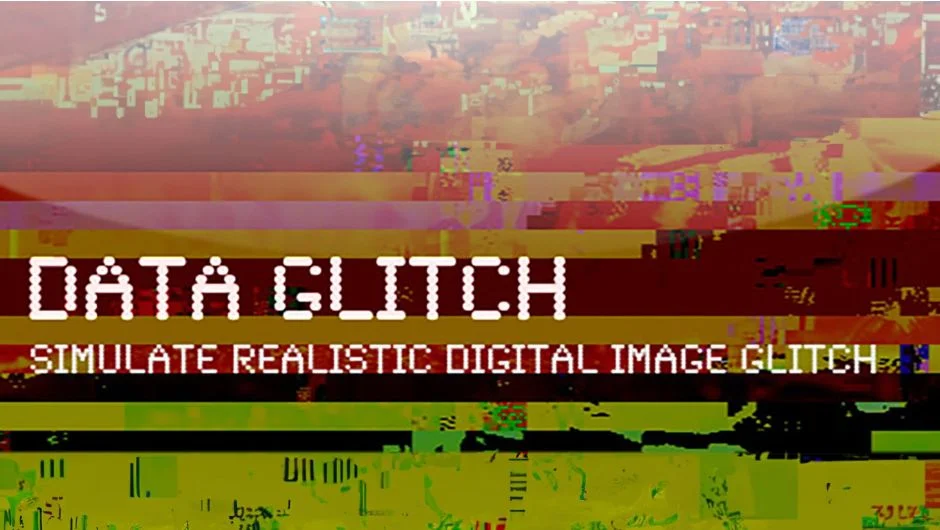
Where Signal simulates analog failure, Data Glitch 2 simulates digital failure: the kind of corruption you get from a damaged JPEG, a partially failed file transfer, or a corrupted video codec. The visual output includes block artifacts, color channel misregistration, scan line displacement, and the characteristic rectangular block breakup that modern lossy compression produces when it fails.
The Data Glitch 2 plugin is particularly useful for title sequences and motion graphics work where you want glitch to feel algorithmic and digital rather than warm and analog. Apply it to a white-on-black title, keyframe the corruption amount from zero to maximum over six frames, and you get a title reveal that looks like a file being read back from damaged storage. The block artifact controls let you set both the block size and the displacement amount independently, which is more granular than most competing options.
One performance note: Data Glitch 2 is computationally heavier than it looks on complex footage at 4K. Allow for rendering time on final exports, and use proxy workflows during edit if you are cutting on a machine without a fast GPU.
Key features:
- Digital compression corruption simulation with block artifacts and color misregistration
- Independent controls for block size, displacement, and corruption intensity
- Scan line displacement and color channel shift controls
- Keyframeable for animated digital degradation sequences
- Single User License covers one computer
Pros/Cons:
- Pros: Convincing digital corruption aesthetic, granular block artifact controls, works well on both footage and motion graphics
- Cons: Heavier GPU load than the effect’s visual complexity suggests, not suited for analog or tape-based glitch aesthetics
Best for: Motion designers and title sequence editors who need digital file corruption aesthetics rather than analog distortion.
Pricing: Paid, $49.99 one-time purchase.
6. Pixel Sorter 3
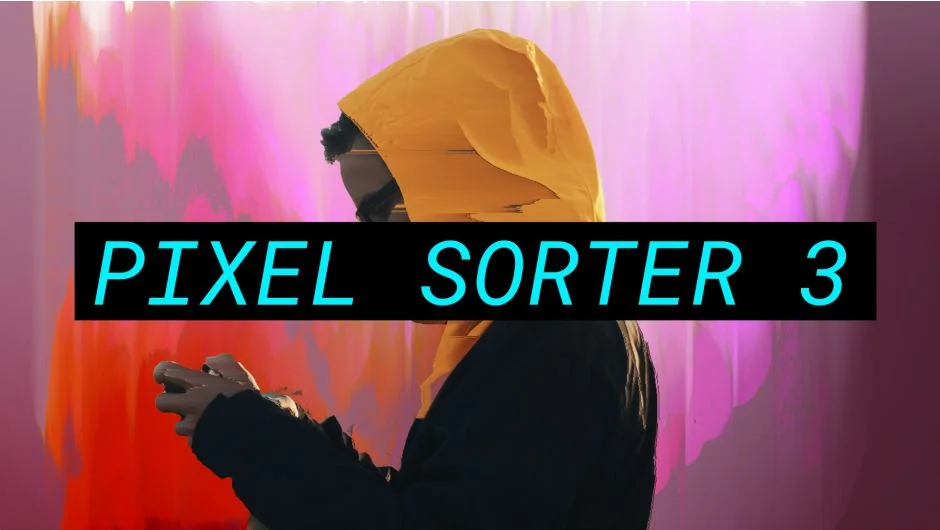
Pixel sorting is its own distinct glitch genre: pixels within a frame are reordered based on their luminance, hue, or saturation values, creating streaks of color that flow across the image in structured patterns. It has become a recognizable aesthetic in album artwork, experimental film, and high-contrast title sequences. Pixel Sorter 3 brings this effect natively into Premiere Pro without requiring After Effects or a separate app.
The Pixel Sorter 3 controls let you set the sort direction (horizontal, vertical, diagonal), the threshold that determines which pixels get sorted, and the sort mode (luminance, hue, saturation, or a combination). The threshold control is the most important: set it too low and the entire image sorts into chaos, set it correctly and you get controlled streaks along high-contrast edges while the rest of the image stays intact. That balance is where the interesting visuals live.
The free trial is fully functional and a genuine way to evaluate the effect before purchasing. Note that the sorting algorithm is CPU-intensive rather than GPU-accelerated, which means preview performance on 4K footage is noticeably slower than GPU-based effects. Plan for render time on export.
Key features:
- Pixel sorting based on luminance, hue, saturation, or combined values
- Directional control: horizontal, vertical, and diagonal sort paths
- Threshold control for determining which pixels participate in the sort
- Keyframeable for animated sorting sequences
- Free trial available (no feature restrictions)
Pros/Cons:
- Pros: Clean implementation of pixel sorting natively in Premiere Pro, free trial with full functionality, granular threshold control
- Cons: CPU-based rather than GPU-accelerated, so preview and export performance on 4K is slower than GPU effects
Best for: Music video directors and experimental editors who want pixel sorting aesthetics without leaving Premiere Pro.
Pricing: Paid, $49.99 one-time purchase.
7. Glitch Control
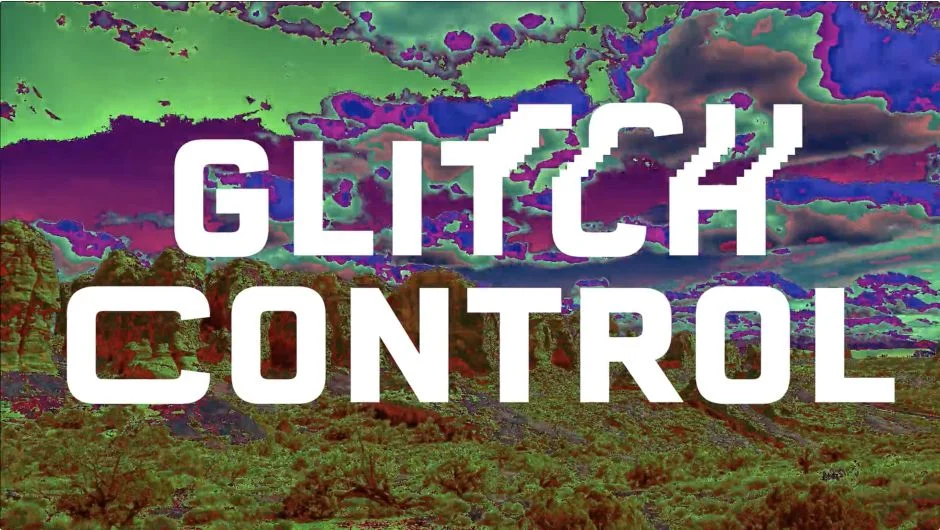
Glitch Control takes a modular approach: rather than simulating one specific type of glitch, it gives you a set of individual distortion modules (RGB split, displacement, scan lines, block artifacts, color noise) that you combine and balance to build a custom look. This is useful when you want a glitch aesthetic that is specific to a project rather than something that reads immediately as one of the familiar presets.
The Glitch Control RGB split module is one of its strongest components. Unlike simple channel offset effects, it lets you control the displacement of red, green, and blue channels independently on both X and Y axes, with optional motion blur on the separated channels. The result is chromatic aberration that can be dialed from subtle (a one-pixel offset that reads as a CRT artifact) to extreme (full channel separation across the frame).
A free trial is available. The $39 price point is competitive for what is essentially a multi-module distortion toolkit. One limitation: the modular approach means more time spent dialing in a look compared to single-purpose plugins with opinionated defaults. If you want something that looks good quickly, Signal or Data Glitch 2 are faster to results.
Key features:
- Modular design with independent RGB split, displacement, scan line, and color noise controls
- RGB channel offset with independent X and Y control per channel
- Optional motion blur on separated channels
- Block artifact and scan line modules combinable with RGB split
- Free trial available
Pros/Cons:
- Pros: Modular control produces more unique results than preset-based plugins, strong RGB split implementation, competitive price
- Cons: More setup time required vs. single-purpose plugins, less opinionated defaults mean slower path to a finished look
Best for: Editors who want to build a custom glitch aesthetic rather than apply a recognizable preset look.
Pricing: Paid, $39.00 one-time purchase.
8. Modulation 2
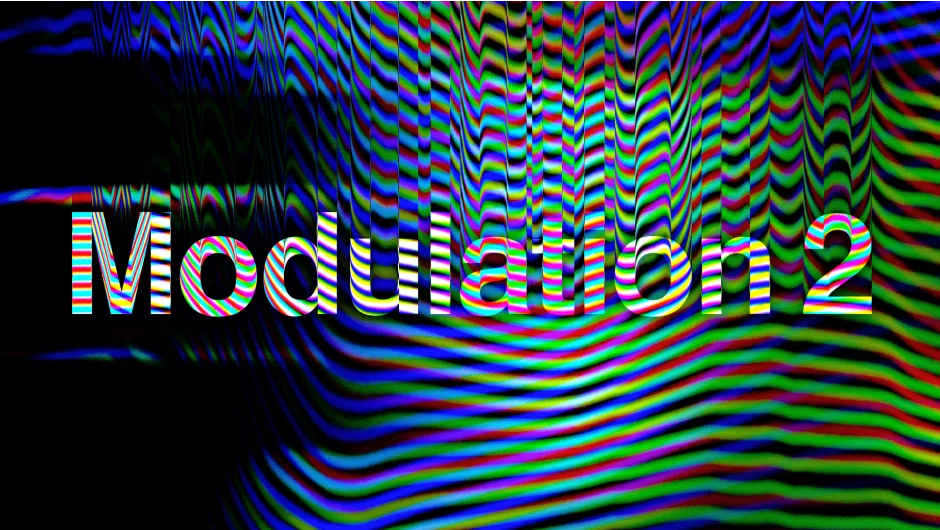
Modulation 2 occupies a specific niche: analog modulation distortion, the kind of warping and frequency interference you get from tape speed inconsistency, magnetic flux variation, or an AM/FM signal breaking down. This is not the sharp block-artifact digital glitch aesthetic. It is the soft, organic, time-based warping that makes footage feel like it is being played back on failing hardware.
The practical use cases are lo-fi music content, VHS-aesthetic short films, and documentary footage that needs to feel archival and degraded. Modulation 2 applies wave-based distortion to both the luminance and chrominance channels, with separate controls for modulation rate, depth, and the phase relationship between horizontal and vertical distortion. The result at low settings reads as tape warble; at higher settings it becomes more psychedelic and abstract.
At $39.99, Modulation 2 is fairly priced for what it does. The limitation is scope: it does modulation distortion, and that is it. If your project needs hard digital glitch, this is the wrong tool. But for retro and analog aesthetics, it sits in territory that few other native Premiere Pro plugins cover as specifically. Compatible with Premiere Pro 2022 and later, macOS and Windows.
Key features:
- Analog modulation distortion with wave-based luminance and chrominance warping
- Independent controls for modulation rate, depth, and phase
- Separate horizontal and vertical distortion parameters
- Keyframeable for animated tape degradation effects
- Free trial available from aescripts.com
Pros/Cons:
- Pros: Covers analog modulation territory that few other Premiere Pro plugins address, organic output that reads as genuine tape degradation, free trial available
- Cons: Single-purpose plugin, not appropriate for digital or compression-based glitch aesthetics
Best for: Lo-fi music video editors and VHS-aesthetic creators who need organic analog modulation rather than hard digital distortion.
Pricing: Paid, $39.99 one-time purchase.
9. Spotlight FX
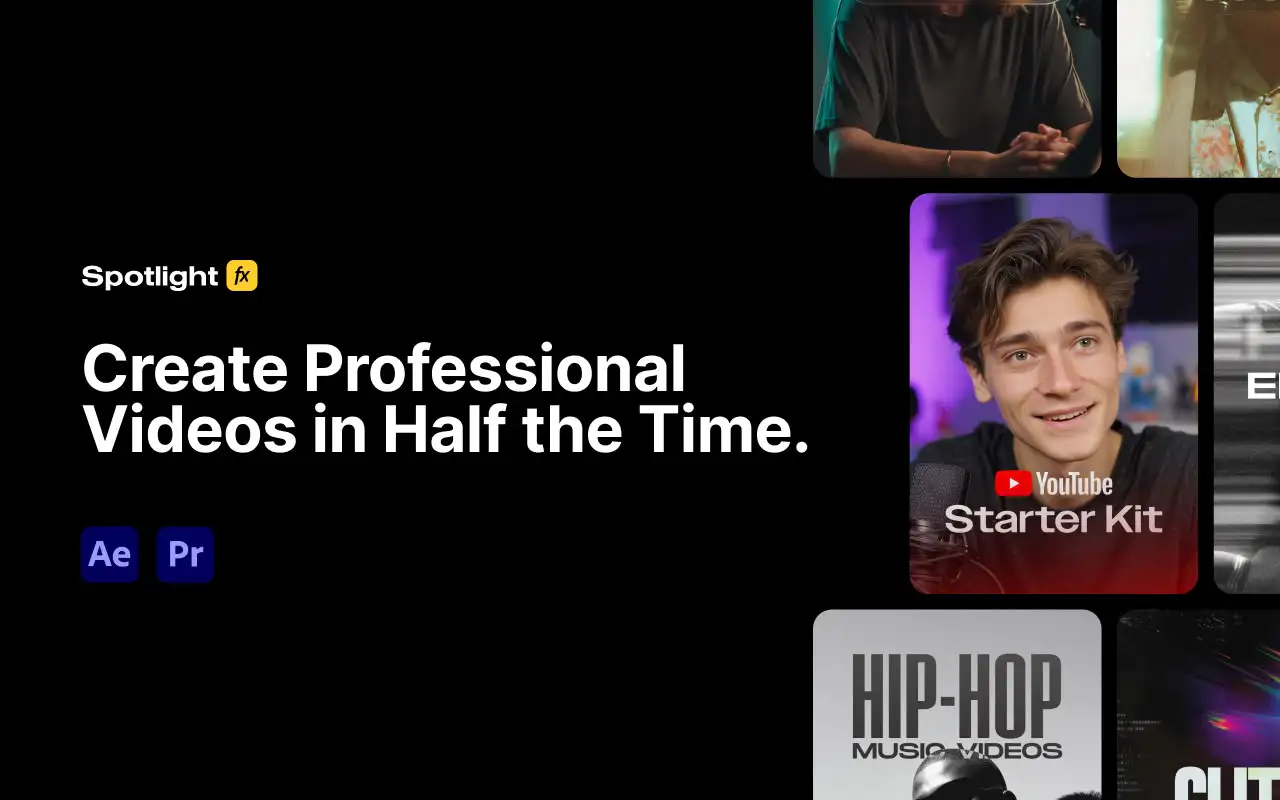
Spotlight FX is not a single-effect plugin. It is a cloud-based asset library with over 2,300 templates, overlays, and transitions that install as a panel inside Premiere Pro. For glitch and distortion work, the relevant categories are the glitch overlays, VHS effects, and glitch transition presets, all drag-and-drop compatible with any Premiere Pro timeline.
The reason it belongs on this list: not every project needs a parametric glitch engine. Sometimes you need a glitch hit on a cut, a VHS overlay for a specific shot, or a distorted lower third, and you need it in the next thirty minutes. Spotlight FX covers that scenario with pre-built assets that look professional and drop directly onto clips without any effect configuration. The free tier includes 39 templates across all categories, including glitch and VHS assets, which is a genuine no-commitment way to test whether the library fits your workflow.
The $14/month (billed annually) or $299 lifetime option unlocks the full 2,300+ asset library, which also includes non-glitch categories like titles, lower thirds, and transitions. If your work regularly spans multiple visual styles, the library value extends beyond glitch content alone. The limitation for technical users: you cannot modify the underlying effect parameters the way you can with a parametric plugin. What you see is what you get on each asset.
Key features:
- 2,300+ assets including glitch overlays, VHS effects, and glitch transitions
- Drag-and-drop from a panel inside Premiere Pro, no After Effects required
- Free tier with 39 templates including glitch and VHS category assets
- Genre packs include horror and music video categories with distortion-heavy assets
- All workflow tools included free with no paid tier required
Pros/Cons:
- Pros: Fastest path to a polished glitch look, free tier lets you evaluate before paying, covers multiple content categories beyond glitch
- Cons: No parametric control over individual effect parameters, not suitable if you need custom or animated glitch behavior
Best for: Content creators and editors who need ready-made glitch overlays and transitions quickly without building effects from scratch.
Pricing: Freemium. Free tier includes 39 templates. Monthly $29/month, Yearly $14/month billed annually, Lifetime $299 one-time.
How we evaluated these plugins
Every plugin on this list was evaluated against the same criteria.
Compatibility was the first filter. Plugins that require After Effects as a host, rely on discontinued frameworks, or have not received updates since 2023 were excluded. All nine plugins here work natively in Premiere Pro on both macOS and Windows.
Visual output quality was assessed by the specificity and physical accuracy of the distortion simulation. Plugins that produce generic noise or blur labeled as glitch were ranked lower than those with outputs grounded in real signal degradation or compression failure behavior.
Rendering performance was considered at both 1080p and 4K. GPU-accelerated plugins were noted where confirmed. CPU-heavy effects were flagged with realistic performance expectations rather than marketing claims.
Price-to-value ratio was evaluated against the breadth of creative territory each plugin covers. Single-purpose plugins at $40 were compared to multi-module toolkits at $99 to give honest guidance on where budget is most efficiently spent.
Update frequency and support quality were checked via the aescripts.com changelog and community forum activity. Plugins with active development and responsive developer support were ranked more favorably than abandoned products.
What to look for when choosing a glitch plugin for Premiere Pro
Before buying, clarify which type of glitch aesthetic your projects actually require. Analog distortion (tape warble, VHS dropout, broadcast signal noise) and digital distortion (compression artifacts, pixel sorting, datamosh) are produced by different plugins. Buying a plugin optimized for one and expecting it to cover the other is a common mistake.
Compatibility with your current Premiere Pro version is non-negotiable. Check the developer’s system requirements page before purchasing, not the marketing copy. Some plugins specify minimum AE/Premiere Pro version numbers, GPU model requirements, or OS version dependencies. A plugin that requires macOS 13 or later will not install on an older system regardless of how much you paid for it.
GPU vs. CPU rendering matters more at 4K and above. GPU-accelerated plugins like Motion Mosh maintain acceptable preview frame rates on modern machines. CPU-heavy effects like Pixel Sorter 3 require either proxy workflows during editing or patience during scrubbing. If your machine does not have a dedicated GPU, factor this into your decision.
Parametric control vs. preset assets is a fundamental workflow split. Parametric plugins like Glitch Control and Modulation 2 let you build custom looks with keyframed animation but require more setup time. Asset libraries like Spotlight FX deliver finished looks instantly but offer less flexibility. Neither approach is wrong; they serve different production contexts.
Free trials are available for most paid plugins on this list via aescripts.com. Use them. Glitch effects are highly subjective, and what looks right for one project will look wrong for another. Evaluating output on your actual footage before purchasing is the only reliable way to assess fit.
Stacking behavior matters if you plan to combine multiple distortion effects. Most of these plugins are designed to be applied to the same clip without conflict, but heavy stacking on high-resolution footage can push render times significantly. Test combinations early in your project rather than at the delivery deadline.
Frequently Asked Questions
Do these glitch plugins work natively in Premiere Pro without After Effects?
Yes, every plugin on this list installs and runs natively inside Premiere Pro. None of them require After Effects as a host application. They appear in Premiere Pro’s Effects panel and are applied directly to clips on the timeline, with keyframe control available through the Effects Controls panel.
What is the difference between a glitch plugin and a distortion plugin?
In practice, the terms overlap. Glitch plugins typically simulate signal failure, data corruption, or compression breakdown, producing artifacts like block errors, scan line displacement, or pixel sorting. Distortion plugins more broadly cover warping, deformation, and modulation effects, including analog tape distortion and lens distortion. Many plugins in this category do both. See the full Glitch and Distortion Plugins for Premiere Pro collection for a comprehensive breakdown.
Which glitch plugin is best for music videos?
For beat-synced glitch hits, Motion Mosh is the most controllable option because its GPU-accelerated real-time preview lets you keyframe the effect precisely to audio. For lo-fi and VHS aesthetics common in hip-hop and R&B content, Signal and Modulation 2 produce more organic analog results. For pixel-sorted title moments, Pixel Sorter 3 is the dedicated tool.
Are there free glitch plugins for Premiere Pro?
Several plugins in the Glitch Bundle use pay-what-you-want pricing on aescripts.com, including Hacksaw and Block Swap, which means you can technically download them for free. Most serious glitch plugins in this category are paid, though free trials are available for the majority. The Spotlight FX free tier also includes glitch overlays and VHS assets at no cost.
Can I animate glitch effects over time in Premiere Pro?
Yes. All parametric plugins on this list are fully keyframeable through Premiere Pro’s Effects Controls panel. You can animate any parameter over time, including intensity, distortion amount, and channel offset values. This is how you build glitch effects that hit on specific beats or intensify during a transition rather than sitting at a static level throughout a clip.
Does the TV Distortion Bundle include chromatic aberration?
Yes. The TV Distortion Bundle includes EFX Chromatic Aberration as one of its five plugins. It handles RGB channel separation with independent control over the offset of each channel, which is more flexible than the channel offset approach built into Premiere Pro’s native effects. The full bundle also includes Bad TV, Dot Pixels, TVPixel, and an additional distortion module.
What does datamosh mean in video editing?
Datamoshing is a visual effect that replicates the appearance of video compressed with missing I-frames, the keyframes that define a complete picture. Without I-frames, the codec can only calculate motion between frames, causing the previous frame’s pixel data to smear and bleed into the new frame rather than cutting cleanly. Motion Mosh simulates this effect as a real-time GPU plugin rather than requiring manual codec manipulation.
Will glitch effects slow down my Premiere Pro timeline?
It depends on the plugin and your hardware. GPU-accelerated plugins like Motion Mosh and TV Distortion Bundle maintain reasonable preview performance on modern machines with dedicated GPUs. CPU-heavy effects like Pixel Sorter 3 noticeably slow down preview at 4K. The practical recommendation for CPU-heavy effects is to edit with proxy footage and apply the glitch effect only before export.
Conclusion
For a complete glitch and distortion toolkit, the TV Distortion Bundle gives the best breadth per dollar at $99, covering analog, digital, and chromatic distortion with five independent plugins. If your work is more focused, Signal is the right call for analog TV aesthetics and Motion Mosh for datamosh-specific projects. Editors who need pre-built assets quickly without building parametric effects from scratch should start with Spotlight FX’s free tier, which includes glitch overlays and VHS templates at no cost.
For a full overview of every glitch and distortion plugin available for Premiere Pro in 2026, browse the Glitch and Distortion Plugins for Premiere Pro collection. If your glitch work overlaps with retro and VHS aesthetics more broadly, the Retro, Vintage and VHS Plugins for Premiere Pro collection covers that territory in depth.